
Criko user manual
Learn Criko, one short video at a time
Each topic has a narrated video under a minute long, the steps in writing, and the screens you will see. Start at the top, or jump to what you need.
Topic 1 of 9
Getting started
Install Criko, sign in with Google and choose how it looks.
Video · 0:38
- Download the app from criko.in/scoring-app and tap Install.
- Open Criko and tap Sign in with Google. There is no password to remember.
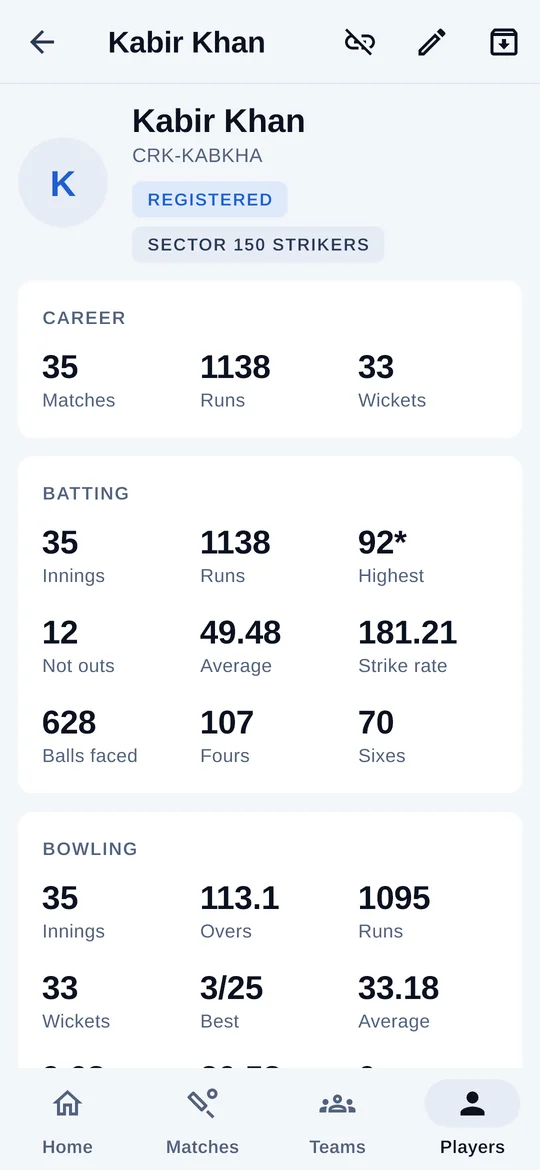
- You now have a player code (CRK-…). Scorers can use it to add you to their teams.
- Under Account → Appearance, choose Light, Dark or Auto.
Topic 2 of 9
Teams and players
Build your squad once, and use it in every match.
Video · 0:46
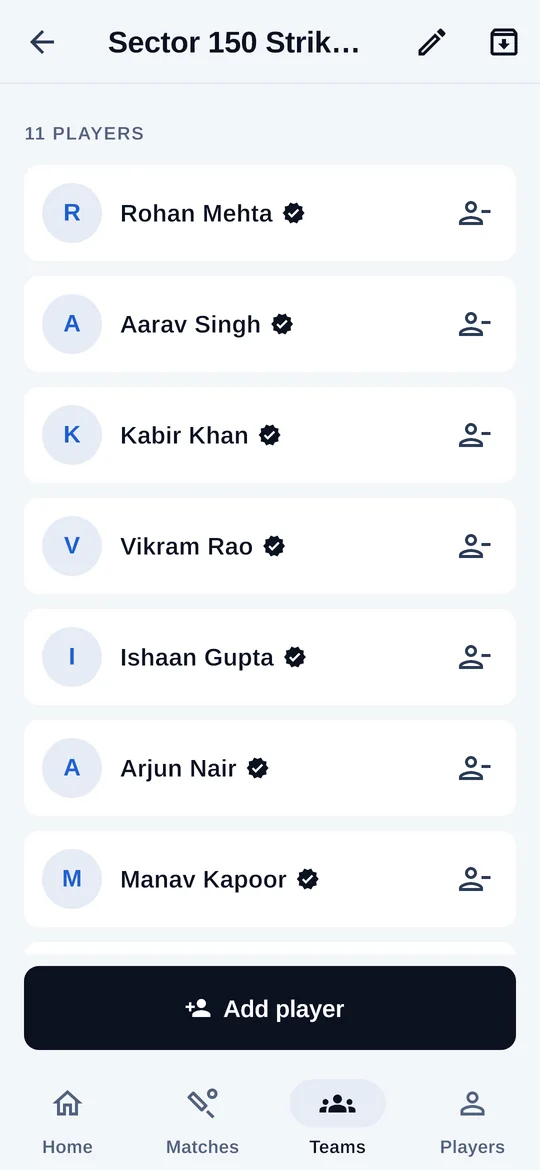
- Open Teams and tap Add team. Give it a name.
- Tap Add player. If your teammate uses Criko, choose Find registered player and search by their email or player code.
- For anyone else, choose New player and type a name.
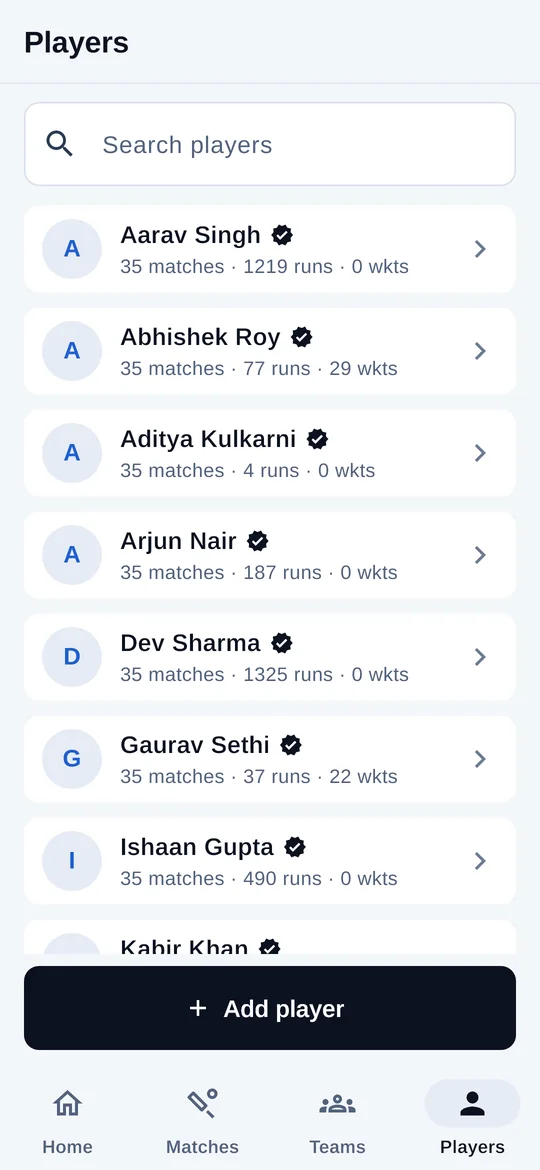
- Open Players to see everyone’s career: matches, runs, average, strike rate and wickets.
Topic 3 of 9
Set up a match
Format, teams, toss and openers in under a minute.
Video · 0:49
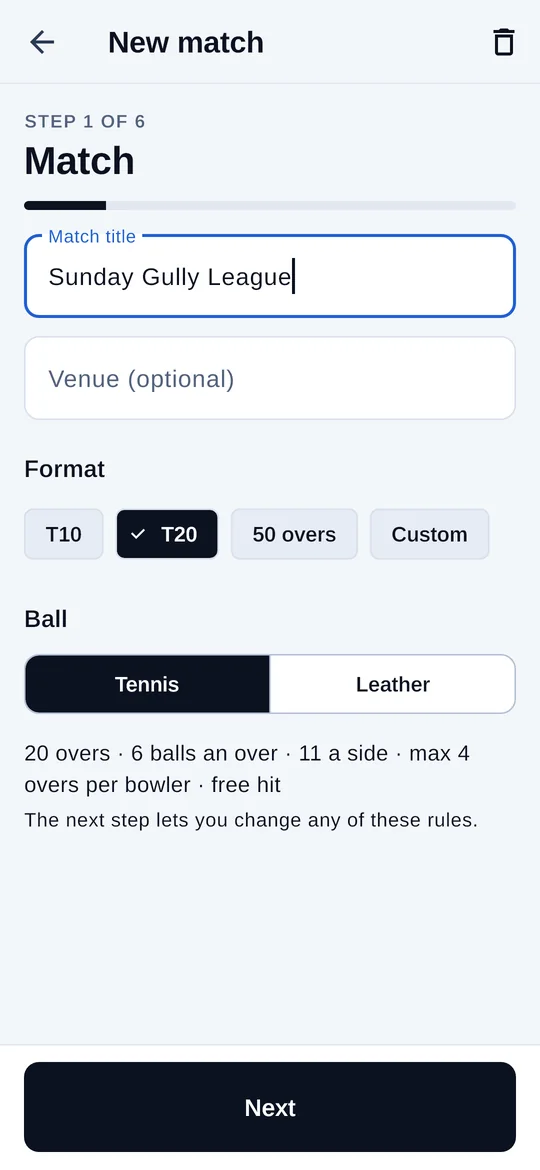
- On Home, tap New match and give it a name.
- Choose T10, T20, 50 overs or your own number of overs, then the ball type.
- For each side, pick a saved team or type a one-off side. Mark the captain and wicketkeeper.
- Record the toss, pick the two openers and tap Start.
Topic 4 of 9
Score a match
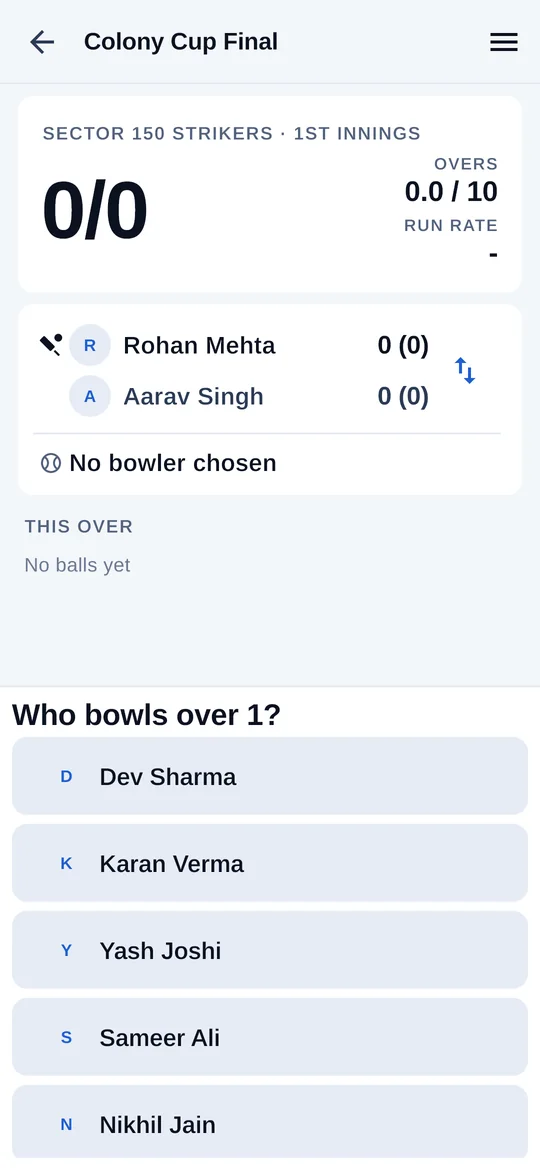
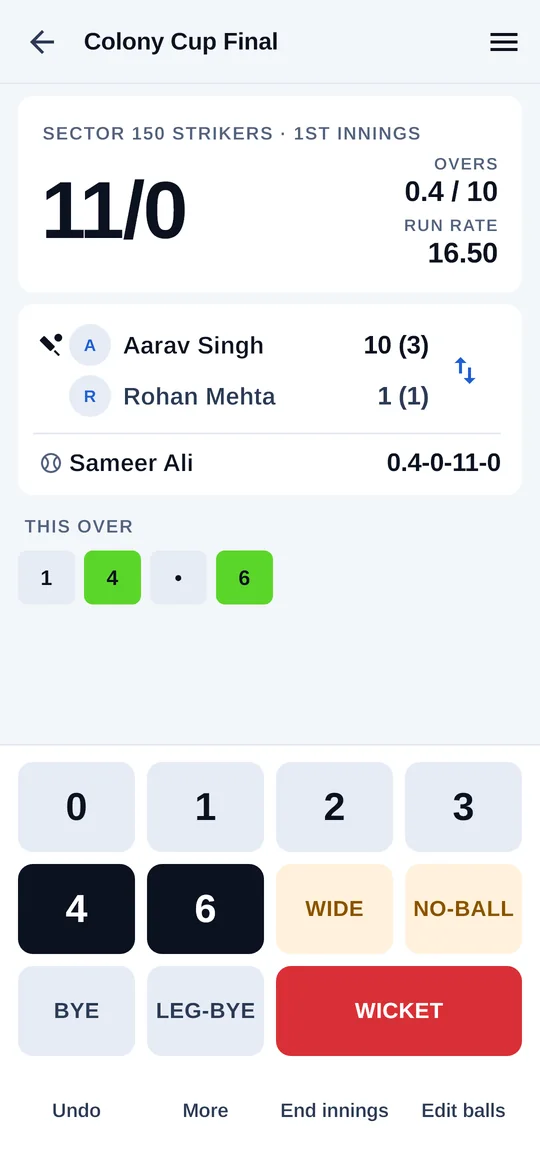
One tap a ball. Criko keeps the over, the strike and the figures.
Video · 0:51
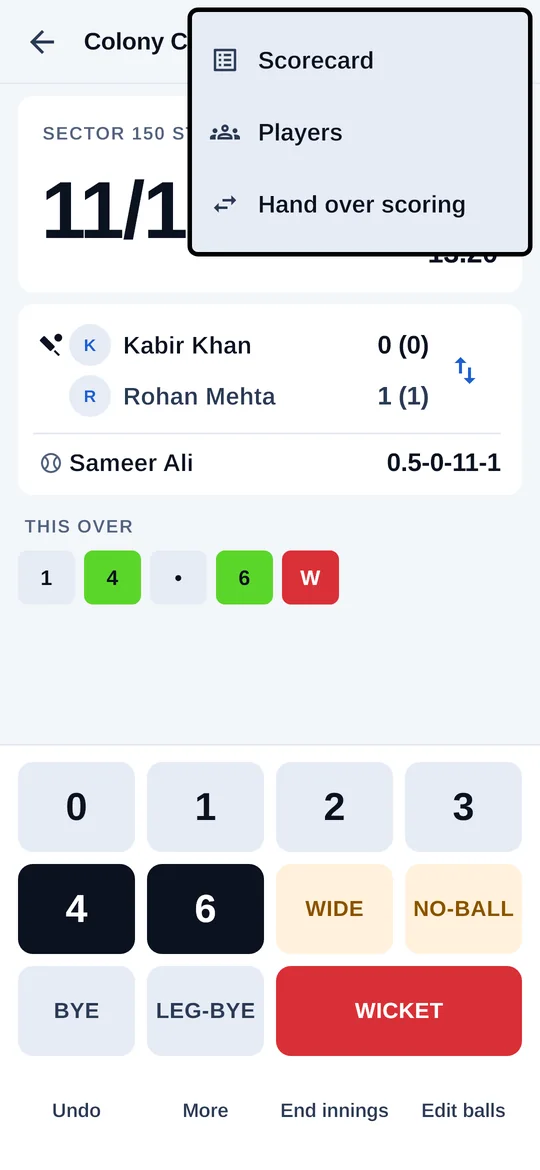
- At the start of each over, choose who bowls it.
- Tap 0–6 for runs off the bat, Wide or No-ball for extras, Bye or Leg-bye for runs not off the bat.
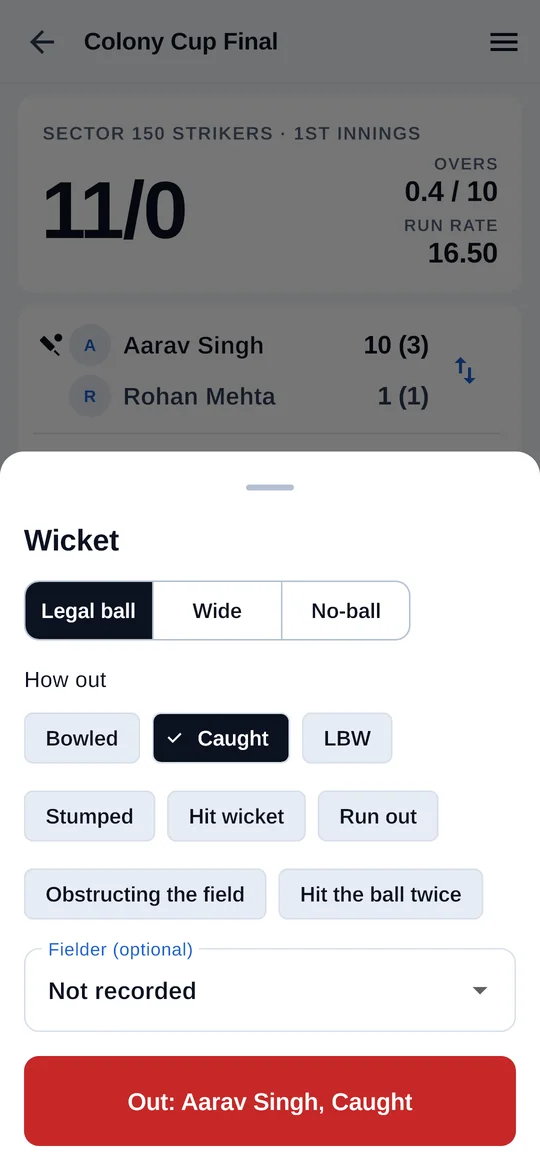
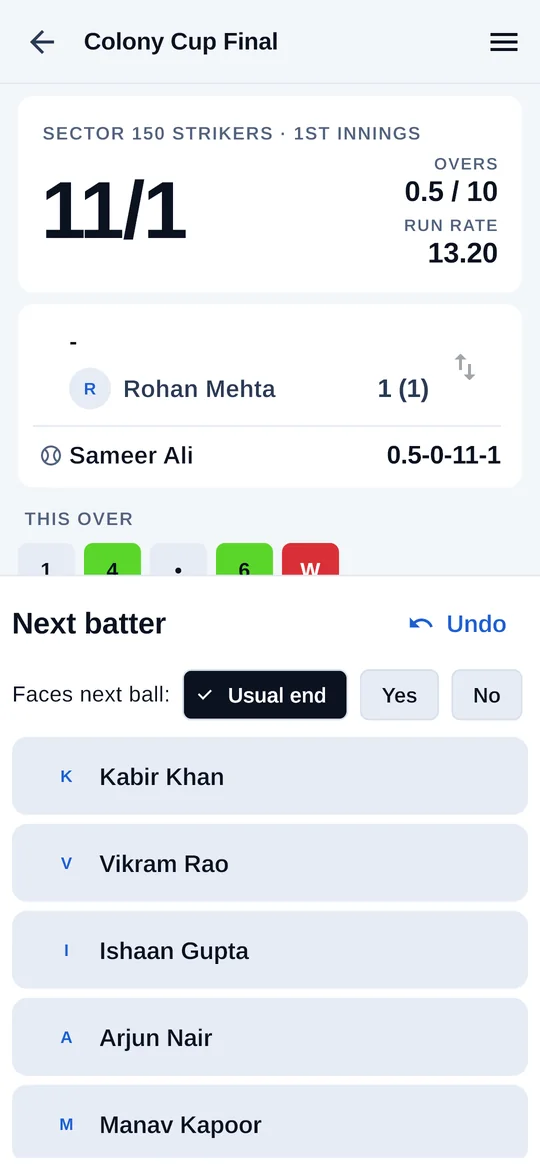
- When a batter is out, tap Wicket, choose how, and pick the next batter.
- Criko changes the strike for you. Tap the arrows beside the batters to swap it yourself.
Tip: Scoring works with no signal. The match backs up by itself when you are online again.
Topic 5 of 9
Fix a mistake, end an innings
Everything you need is under the pad, always in view.
Video · 0:40
- Undo takes back the last ball.
- Edit balls corrects any earlier ball in the innings; everything after it is worked out again.
- More holds five runs, penalty runs and retiring a batter.
- End innings closes the innings early, after asking you first.
- The menu at the top holds the scorecard, changing players, handing over and sharing.
Topic 6 of 9
Match centre and sharing
Info, Summary, Scorecard, Overs and Squads, and a live link for everyone else.
Video · 0:53
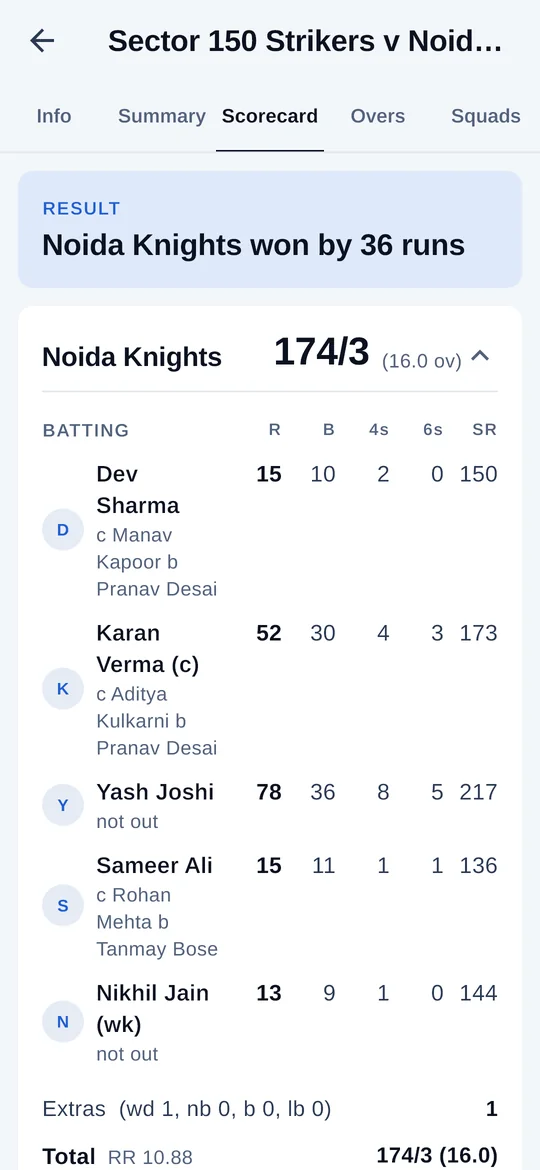
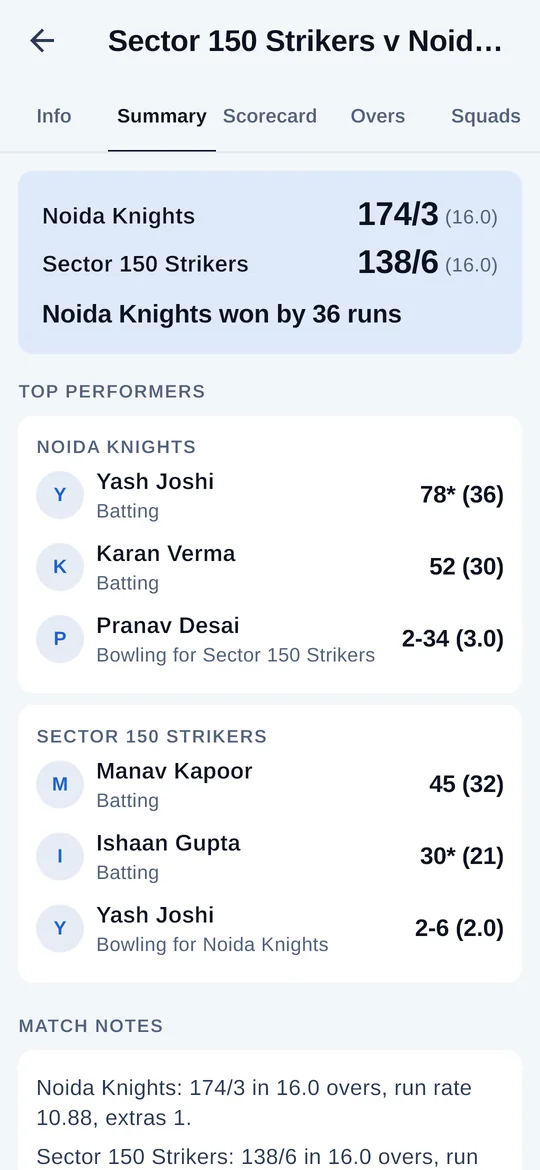
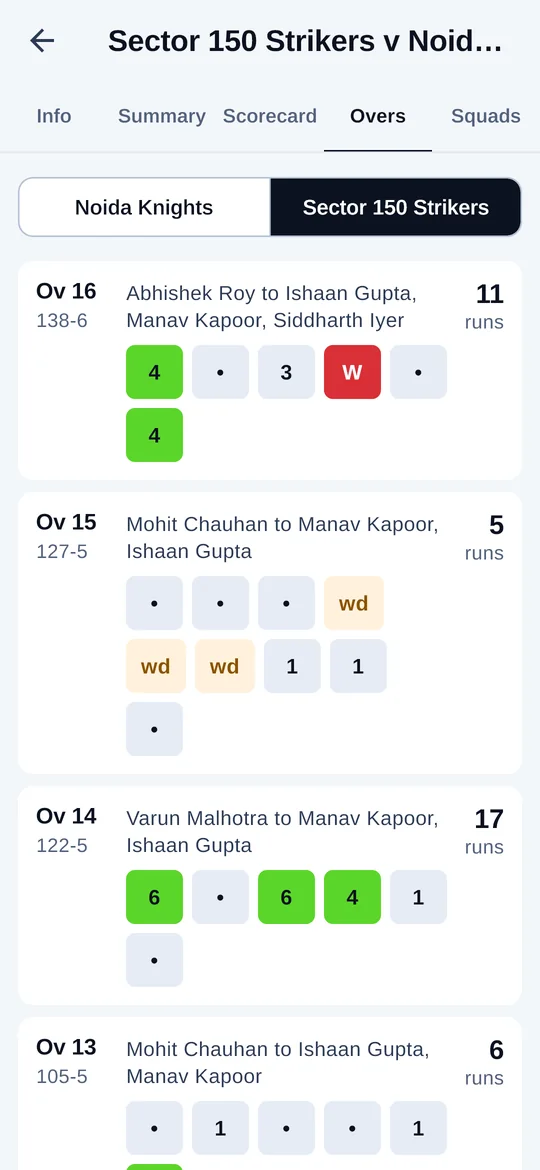
- While scoring, open the menu → Scorecard. For a finished match, tap it on Home.
- Swipe through the five tabs: Info, Summary, Scorecard, Overs and Squads.
- Open the menu → Share live scorecard to send a link or show a QR code.
- Players in the match see it in their own Criko app; anyone else can open the link. Stop sharing at any time.
Topic 7 of 9
Grounds and fixtures
Find a ground near you, or list your own.
Video · 0:53
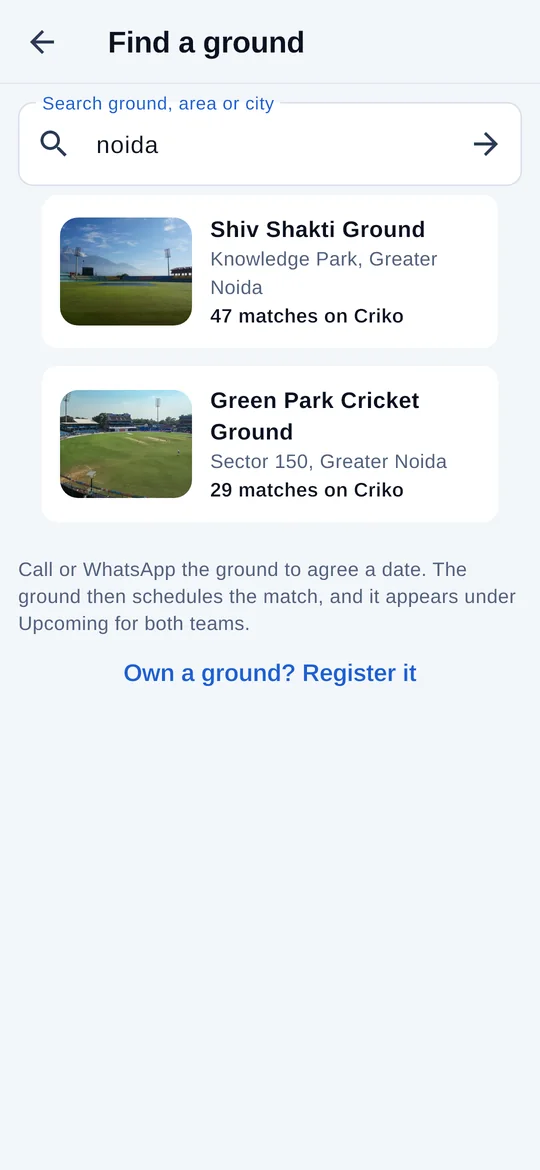
- Tap the ground icon on Home and search by area or city.
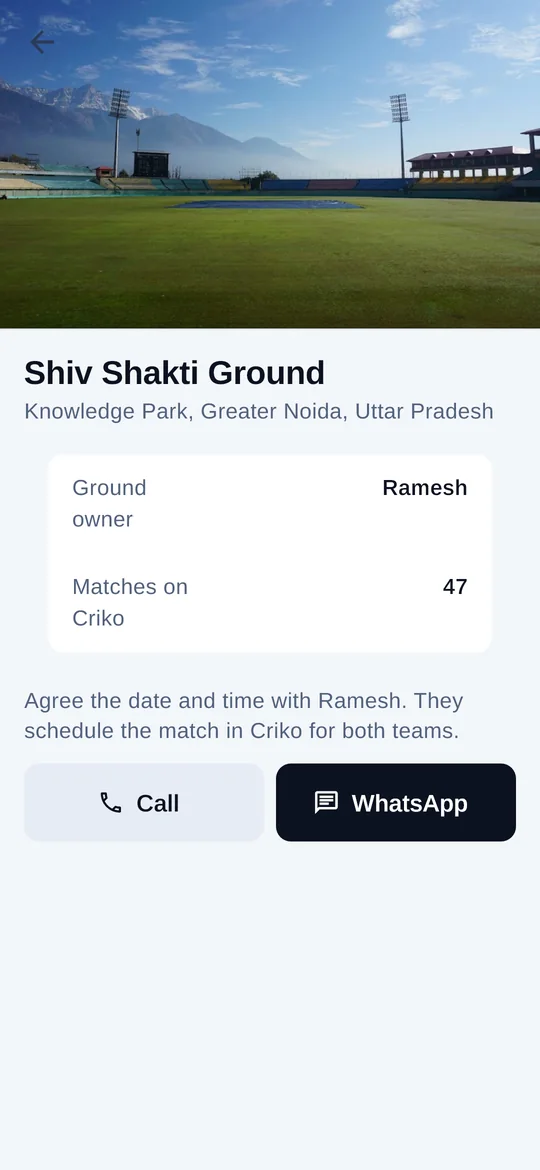
- Open a ground to see its photos, address and matches, then tap Call or WhatsApp.
- The ground schedules your match; it shows under Upcoming for both teams.
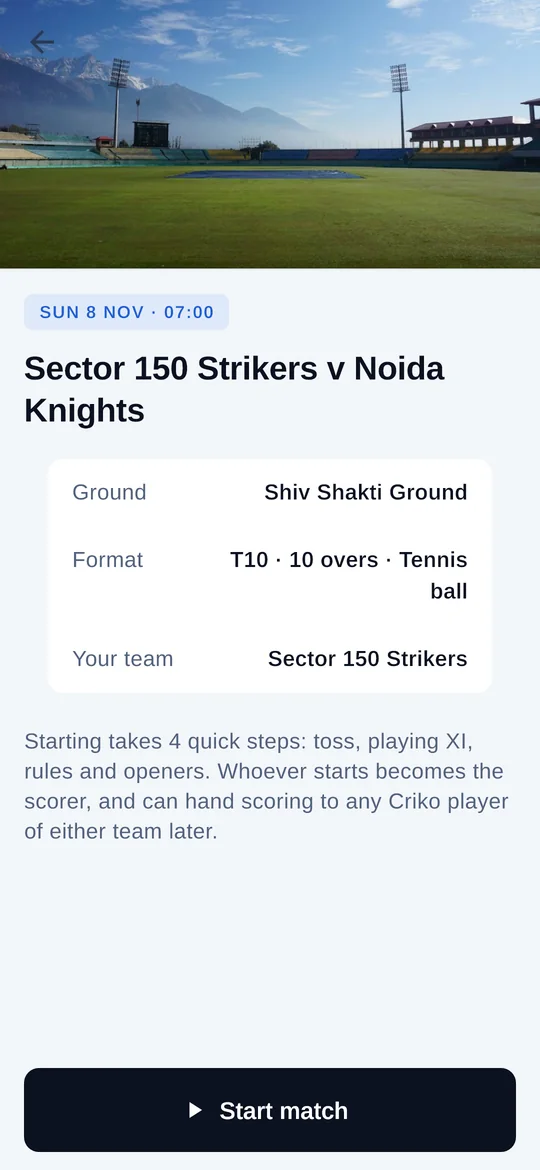
- On match day, open it and tap Start match: both teams are already filled in.
- Own a ground? Account → Your grounds → Register a ground, add details and photos, and wait for approval.
Topic 8 of 9
Hand over scoring
Batting next? You don’t have to score and bat at the same time.
Video · 0:31
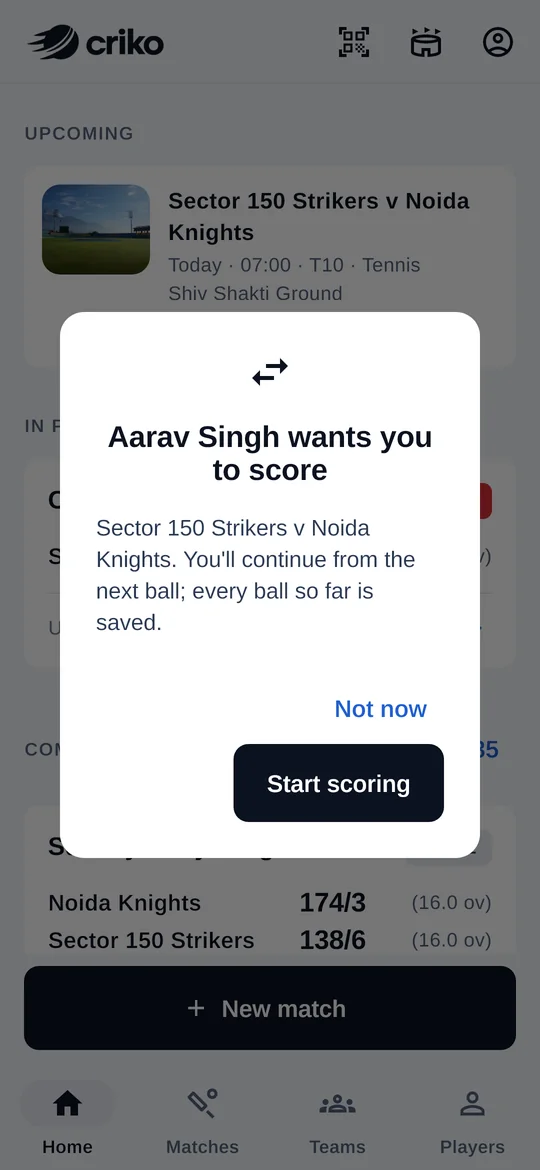
- While scoring a scheduled match, open the menu → Hand over scoring and pick the teammate.
- They get an alert. When they tap Start scoring, they carry on from the very next ball.
- Quick matches stay on one phone; for those, simply pass your phone along.
Topic 9 of 9
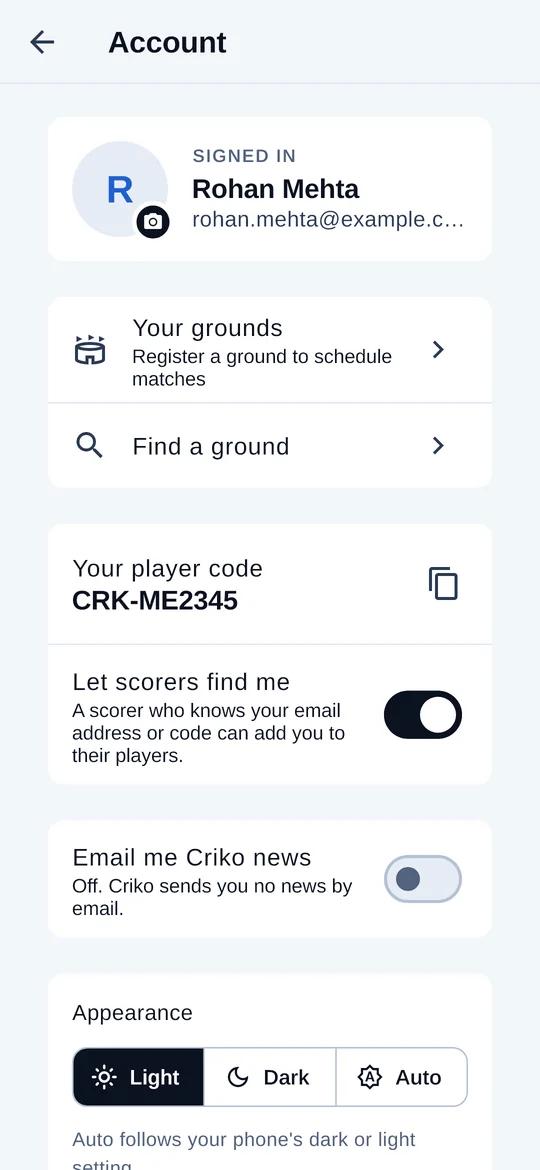
Your account and photo
Your photo, player code and settings in one place.
Video · 0:33
- Tap your picture at the top of Home to open Account.
- Tap the camera badge to take or choose a profile photo. It shows wherever you appear.
- Copy your player code to share with scorers, or turn off Let scorers find me.
Still stuck?
Email support@criko.in and we will help.